Hi Everyone,
In this blog we will see how we can Install & Connect VS Code with Microsoft Dynamics 365 Business Central 2019 W1 On Premise.
As discussed in earlier post, we have seen steps to Download & Installation of Microsoft Dynamics 365 Business Central W1 (On-Premise). You can refer below mentioned link for Part-1:
Step-(1) Install Visual Studio Code by following below snapshots:

Step-(2) Click Install & then click on Finish button.

Step-(3) Now Open Visual Studio Code, On Extension Management Tab (Ctrl + Shift + X), Install the AL Language Extension Version v7.4.496506.

Step-(4) Now Open Command Pallet and search AL:Go command & hit enter.

Step-(5) Now tag the Folder Name or Path where the Project/Extension Files stores.


7.0 - For BC 2021 Wave1. [BC18]
6.0 - For BC 2020 Wave 2. [BC17]
5.0 - For BC 2020 Wave 1. [BC16]
4.0 - For 2019 Wave 2. [BC15]
3.0 - For BC Spring 2019. [BC14]
2.0 - For BC Fall 18. [BC13]
1.0 - For BC Spring 18. [NAV 2018]
Step-(7) Now, Choose the server for SaaS select Microsoft cloud sandbox or for On-Prem select Your own server.

Step-(8) Now. in app.json file, change the value of defined parameters accordingly

- Server - define localhost initials in case of on-Prem.
- Server Instance - Name of service defined during Installation.
- Authentication - (i) Windows - using same system authentication OR (ii) User Password - need to specify the user password to authenticate.
- Port - Bydefault Development port is 7049,In Case of change during installtion specify exact Development port like: "Port" : 8049, or any
Note:- Before downloading the symbols, Make Sure you have enabled checkbox for Enable Developer Endpoint parameter in Business Central Administration.

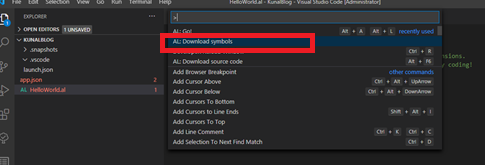
Step-(9) Now, just download the symbols using the command Pallet (Ctrl+Shift+P) & select AL:Download Symbols.

I hope this will help you to setup your Development environment in Business Central On-Premise version.
Thanks!! Stay connected for more articles :)
Still I'm not able to do it
ReplyDelete